
Worker statuses and colours
The four colours, every status a Worker's placement can have, what moves it between them, and what the Worker and the site gate see.
A Worker has one placement, and one status, on each Project they are on. Each colour answers one question: can this person go to site, and for how long?
The four colours
| Colour | Means | Statuses |
|---|---|---|
| Grey | Not checked yet: getting started, with the Worker, with a reviewer, or the placement has ended | 1–6, 8, 10, 15 |
| Green | Compliant: go to site. Every review passed; every required document, licence and course is valid, and none expires soon | 13 |
| Amber | Compliant and still cleared for site, but a required document, licence or course expires soon (inside its warning window, 30 days unless the question sets another) | 13 |
| Red | Not compliant: not on site until it is put right. Sent back to fix, a required course still to do, something expired or lapsed, or the placement is paused | 7, 9, 11, 12, 14, 16 |
Two things change the status's own colour. A required document, licence or course that has expired makes a live placement Red at any stage, even before it is first checked. A required one expiring soon makes a Compliant placement Amber. An optional document never changes the colour. Any other problem found on a record shows as a flag for the reviewer, or moves the status (to Non-compliant or Suspended), and the colour follows the status.
The map
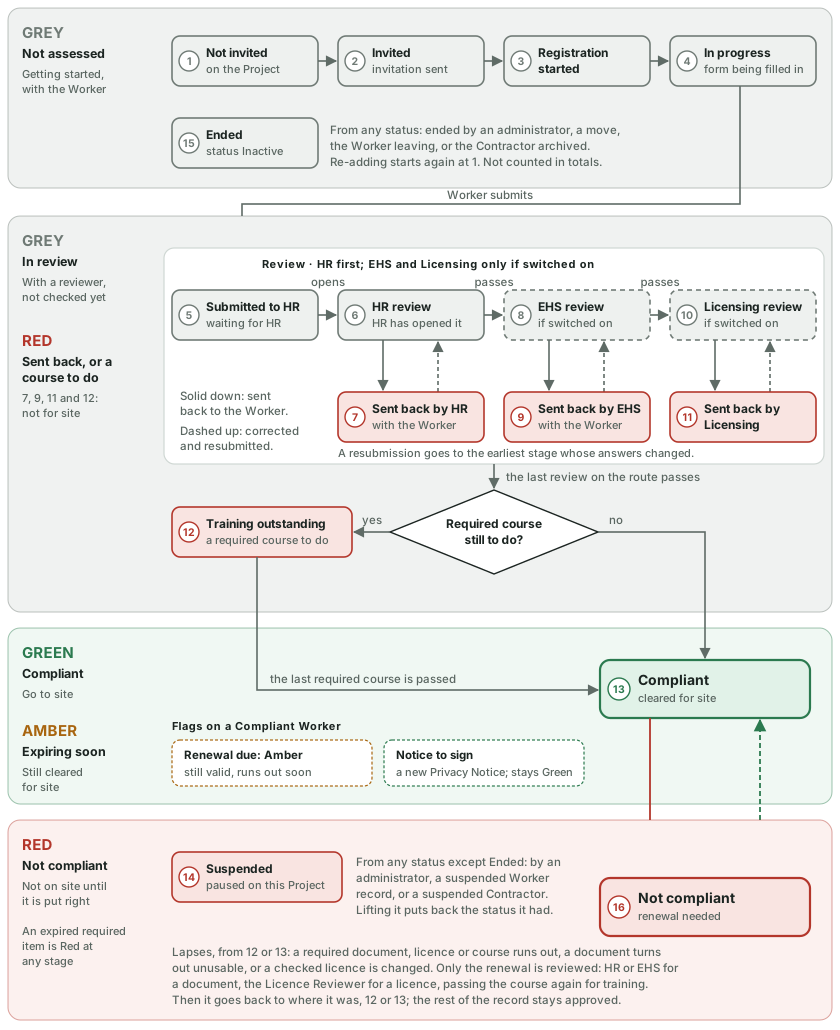
Every status
| # | Status | Colour | What it means | Who acts next | The Worker sees | The site pass shows |
|---|---|---|---|---|---|---|
| 1 | Not invited | Grey | On the Project, no invitation yet | Administrator | Not started | Not reviewed yet |
| 2 | Invited | Grey | Invitation sent | Worker | Not started | Not reviewed yet |
| 3 | Registration started | Grey | Invitation accepted, or the placement opened in the portal | Worker | Not started | Not reviewed yet |
| 4 | In progress | Grey | Form saved at least once | Worker, or an administrator for them | In progress | Not reviewed yet |
| 5 | Submitted to HR | Grey | Waiting for HR | HR | In review | In review |
| 6 | HR review | Grey | HR has opened it | HR | In review | In review |
| 7 | HR rejected | Red | Sent back by HR to fix | Worker | Sent back by HR | Sent back |
| 8 | EHS review | Grey | Waiting for, or with, EHS | EHS | In review | In review |
| 9 | Returned by EHS | Red | Sent back by EHS to fix | Worker | Sent back by EHS | Sent back |
| 10 | Licensing review | Grey | Waiting for, or with, the Licence Reviewer | Licence Reviewer | In review | In review |
| 11 | Returned by Licensing | Red | Sent back by Licensing to fix | Worker | Sent back by Licensing | Sent back |
| 12 | Training outstanding | Red | Every review passed, a required course still to do | Worker (do the course) | Training outstanding | Training outstanding |
| 13 | Compliant | Green, or Amber when a required item expires soon | Cleared for site | Nobody (Amber: the Worker renews in time) | Compliant | Cleared for site |
| 14 | Suspended | Red | Paused on this Project, with a written reason | Administrator (lift) | Not compliant | Paused |
| 15 | Inactive | Grey | Placement ended; not counted in totals | Administrator (re-add) | Inactive | Not shown |
| 16 | Non-compliant | Red | Something lapsed at 12 or 13; only the renewal is reviewed | Worker (renew), then HR, EHS or the Licence Reviewer | Not compliant – renewal needed | Not compliant |
EHS and Licensing review (8–11) happen only on Projects where they are switched on. HR is always first; the Customer chooses whether EHS or Licensing comes next when both are on.
What moves a Worker between colours
From Grey to Green
- Submit — the Worker sends the form, which goes to HR (5).
- Pass — each review hands on to the next; when the last one passes, the record goes to 12 Training outstanding if a required course is still to do, otherwise 13 Compliant.
- Course passed — 12 becomes 13.
- Sent back — a review returns the record to the Worker (7, 9 or 11, Red); they correct it and resubmit, and it goes to the earliest stage whose answers changed.
Green to Amber or Red, and back
-
Expiring soon — a required document, licence or course enters its warning window: a Compliant Worker turns Amber, still cleared for site, and goes back to Green once the renewal is approved.
-
Lapse — from 12 or 13 to 16 Non-compliant (the Worker reads Not compliant – renewal needed; reviewers' and administrators' pages read Not compliant) when a required document, licence or course runs out, a document turns out to be unusable (its file was blocked, or its expiry date is missing), or a checked licence is changed. Only the renewal is reviewed: HR or EHS for a document, the Licence Reviewer for a licence, passing the course again for training. Then it goes back to where it was, 12 or 13; the rest of the record stays approved.
-
Training to do — a course newly required by the Project, or progress on a course reset by the Customer, moves a Compliant Worker to 12 Training outstanding until it is passed.
-
Change an approved answer — from 12 or 13 the record goes back to that answer's reviewer.
-
Suspend and lift — 14 from any status except Ended; lifting it puts back the status it had.
Ending
- An administrator ends the placement, the Worker moves to another Project or Contractor, or the Worker leaves (15). Re-adding starts again at 1, with the earlier answers kept as drafts.
Flags
- Renewal due — a required document, licence or course is still valid but runs out soon. The Worker and their Contractor Administrator are reminded; a Compliant Worker shows Amber, still cleared for site, until it is renewed, and Red if it actually runs out first.
- Notice to sign — a new Privacy Notice is waiting. The Worker signs it the next time they open their portal.
Optional documents never change a status or a colour: they only send reminders.
Beside each placement
- Worker record suspended — every placement is paused (14). Inactive, left the Contractor, or archived — every placement ends (15).
- Contractor suspended — its Workers' placements are paused, "Contractor suspended", and put back when it is active again. So are the placements of the companies below it, on the Projects where they are below it only; a company below it that is also an Obtempera Customer, and those below that one, carry on. A pause an administrator set stays. Contractor archived — its Workers' placements end.
- Project suspended, completed or archived — the Project is frozen: its Workers' placements cannot be paused or ended one by one. Set the Project Active again first, then pause or end the placement.
- Projects, Contractors and Customers show their worst colour: any Red, then any Grey, then any Amber; Green only when every live placement is Green. Ended placements, and suspended, completed or archived Projects, are not counted.
At the site gate
Every Worker has a Site pass button on every page of their portal: a QR code that renews itself every few minutes. Anyone can scan it with a phone camera; HR, EHS and administrators can also use Scan site pass in Obtempera. The gate sees the person's name and each Project in its colour with the word from the table above. Green or Amber appears only when the Worker really is cleared for site.